Documentation
User Guide
This guide walks through Kick Rocks one screen at a time, from your first recording to sharing a trip with the people who were there. New here? Read the first four sections and go for a walk — the rest will make more sense once you have a trip or two.
1. First run
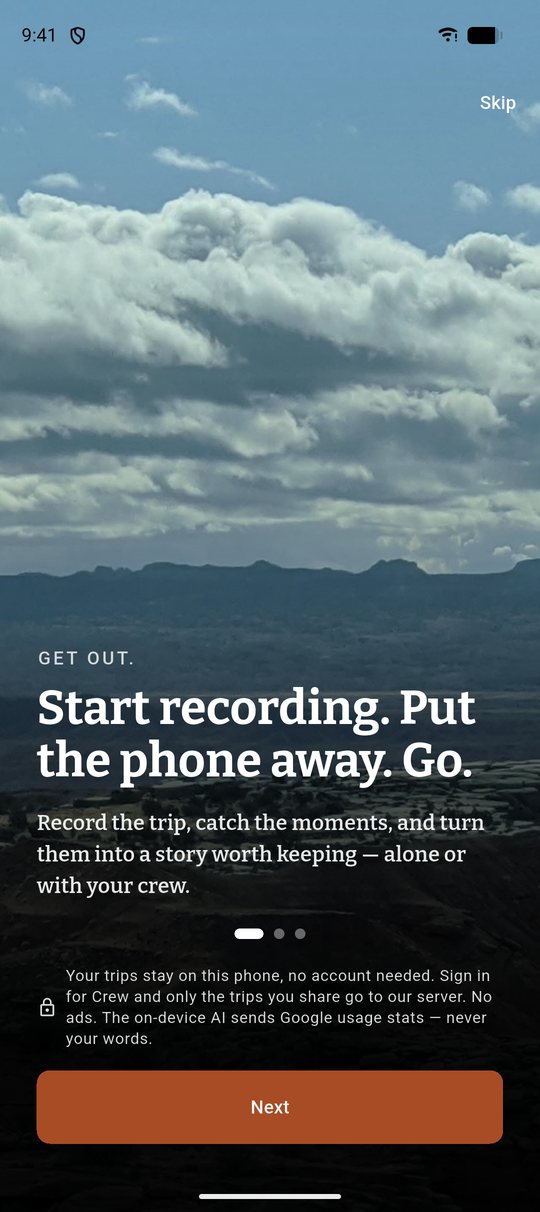
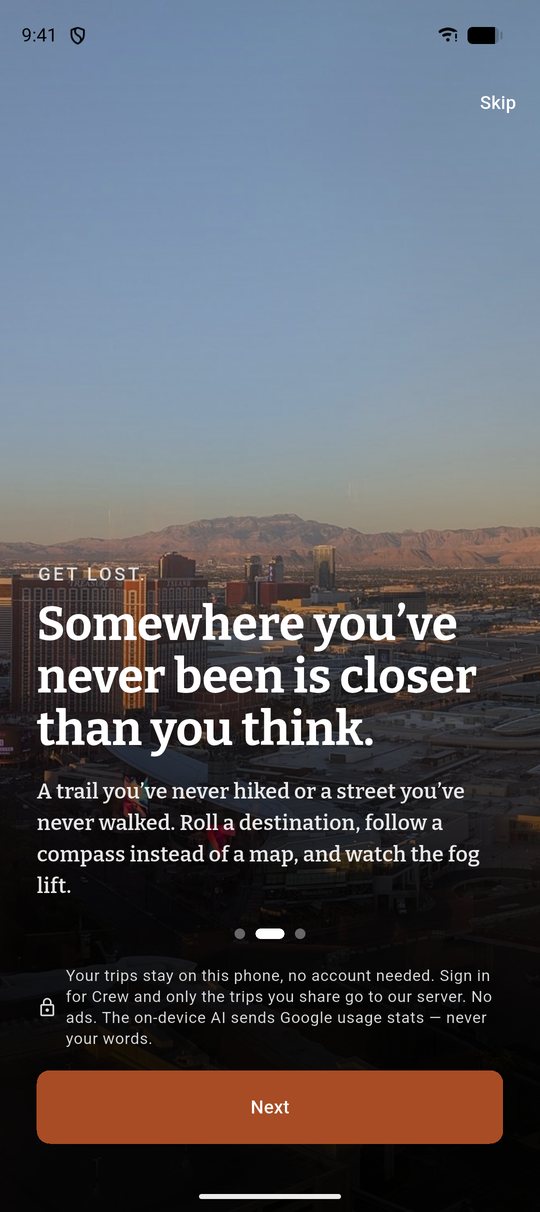
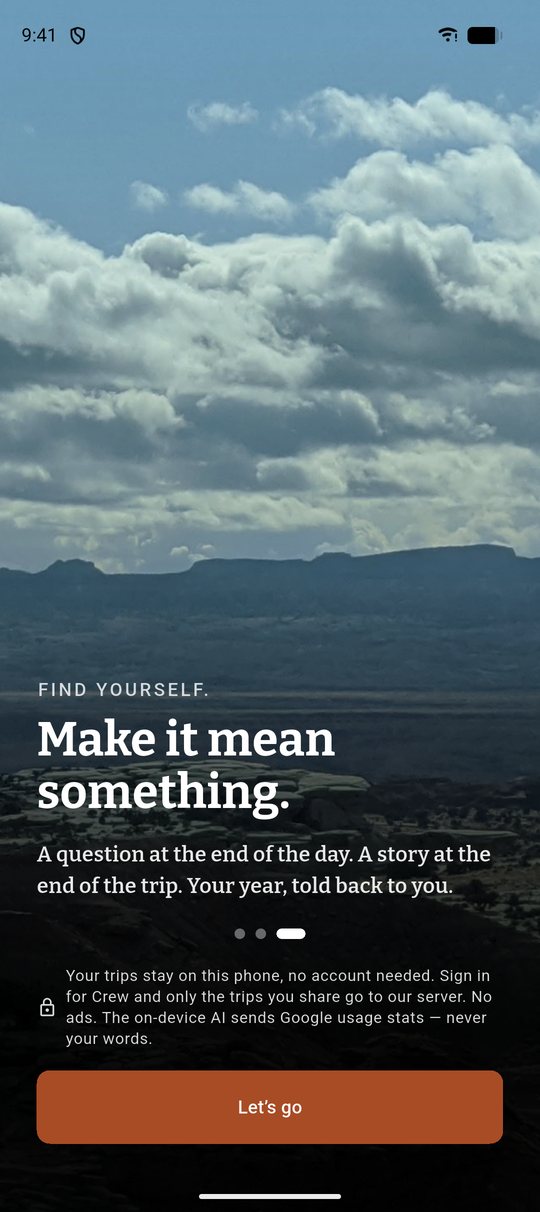
Kick Rocks opens with three short pages — Get out, Get lost, Find yourself — and the privacy promise in one line at the bottom. Tap Next through them, or Skip. There’s no account to create and nothing to sign in to: the app is ready the moment you tap Let’s go.
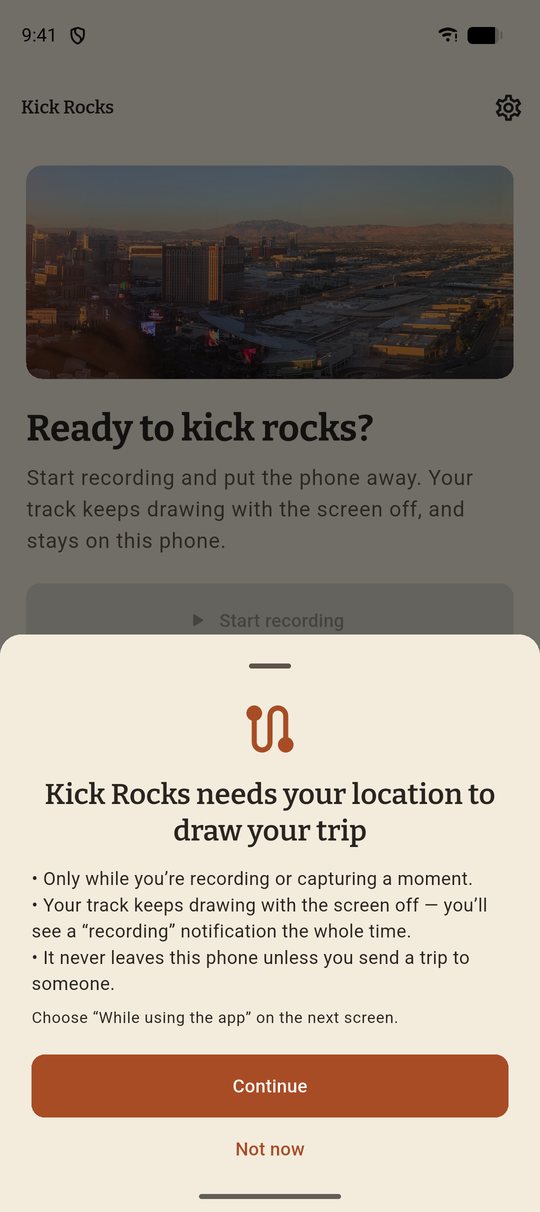
Permissions are asked for the first time you need them, not up front:
- Location — when you first start recording or capture a moment. Choose While using the app. Kick Rocks never asks for “always on” location; the recording notification is what keeps a trip running with the screen off.
- Notifications — so the “recording” notice can show while a trip runs. Recording works either way.
- Microphone — only when you record a voice note or dictate.
2. Go, Journal and Map
Three tabs along the bottom hold the whole app:
- Go — start a trip, capture a moment, and the Get lost toolkit.
- Journal — your Trips, every Moment, and Life: lifetime stats, the scratch map and achievements.
- Map — every trip you’ve recorded on one map.
The gear in the top corner opens Settings.
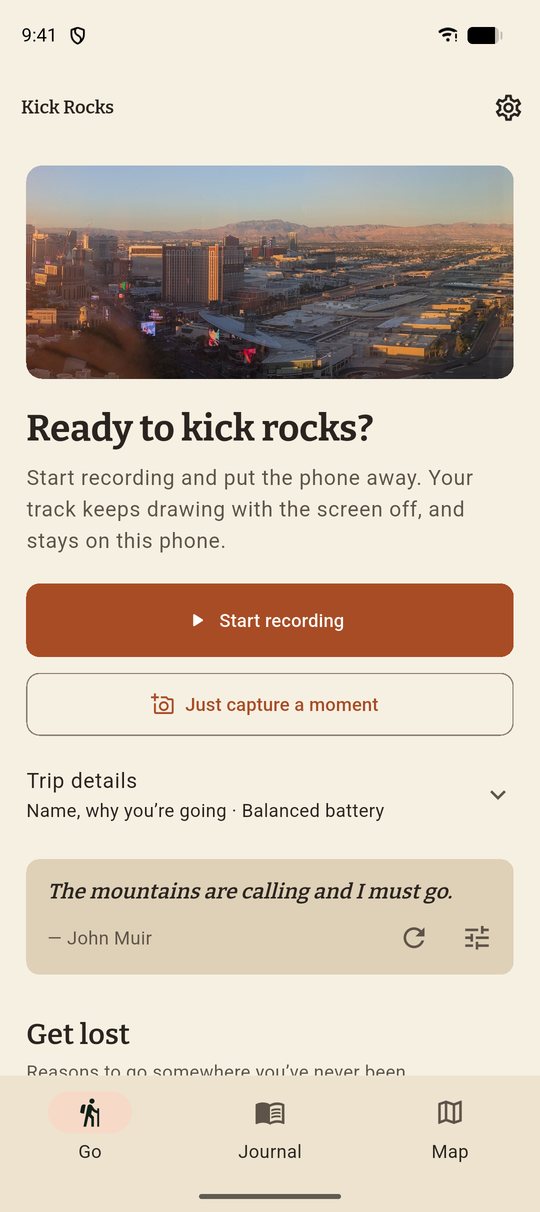
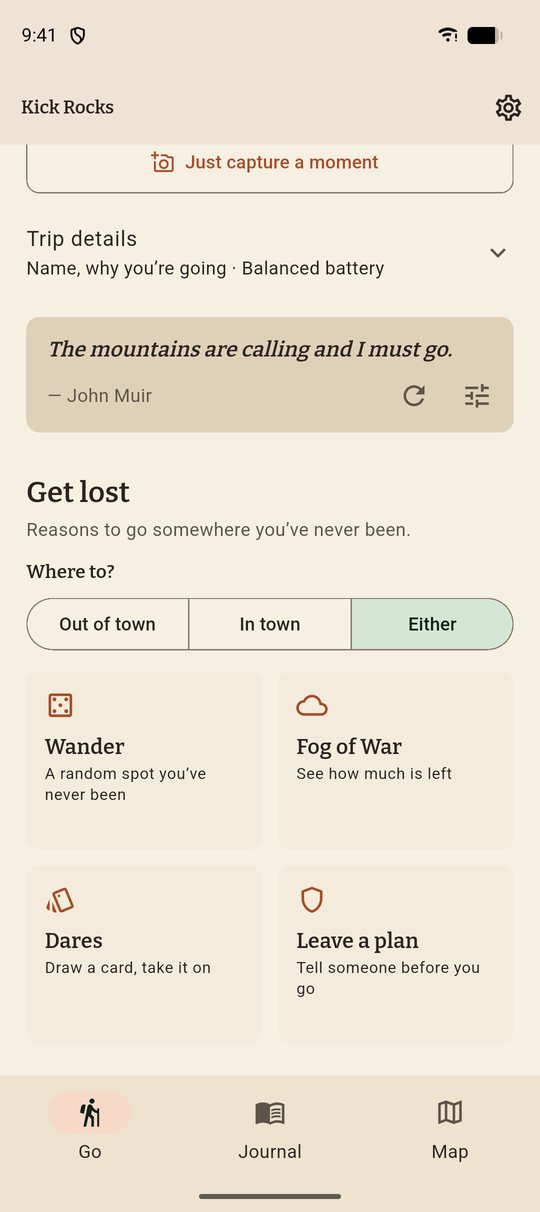
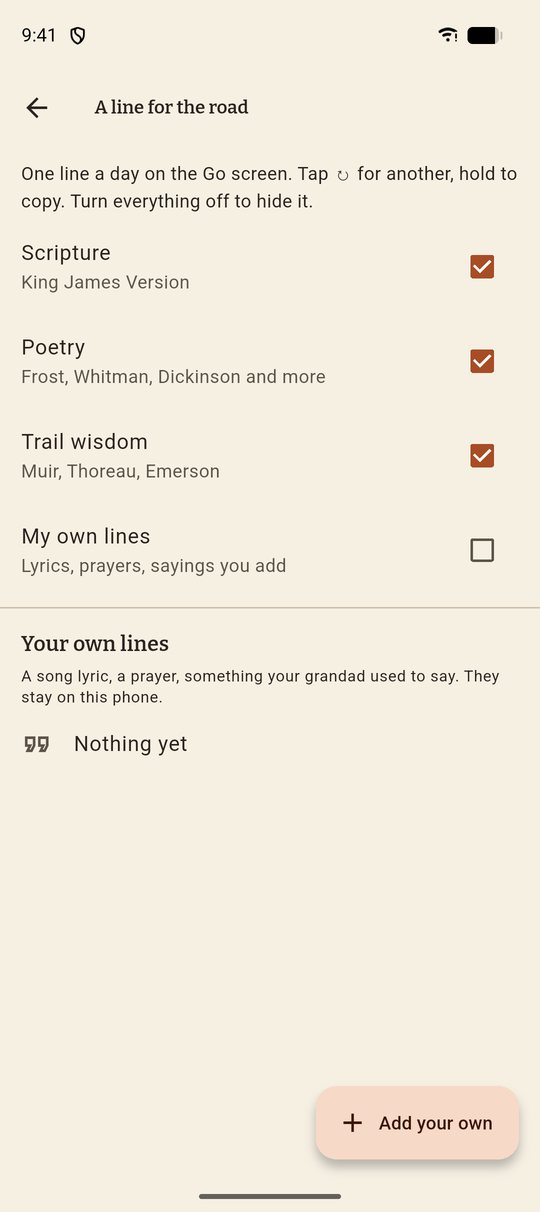
The card under the buttons is A line for the road: one line a day from Scripture, poetry, trail wisdom, or lines you add yourself. Tap ↻ for another, hold to copy, or tap the sliders icon to choose which collections to draw from. Turn it off in Settings if you’d rather not see it.
3. Recording a trip
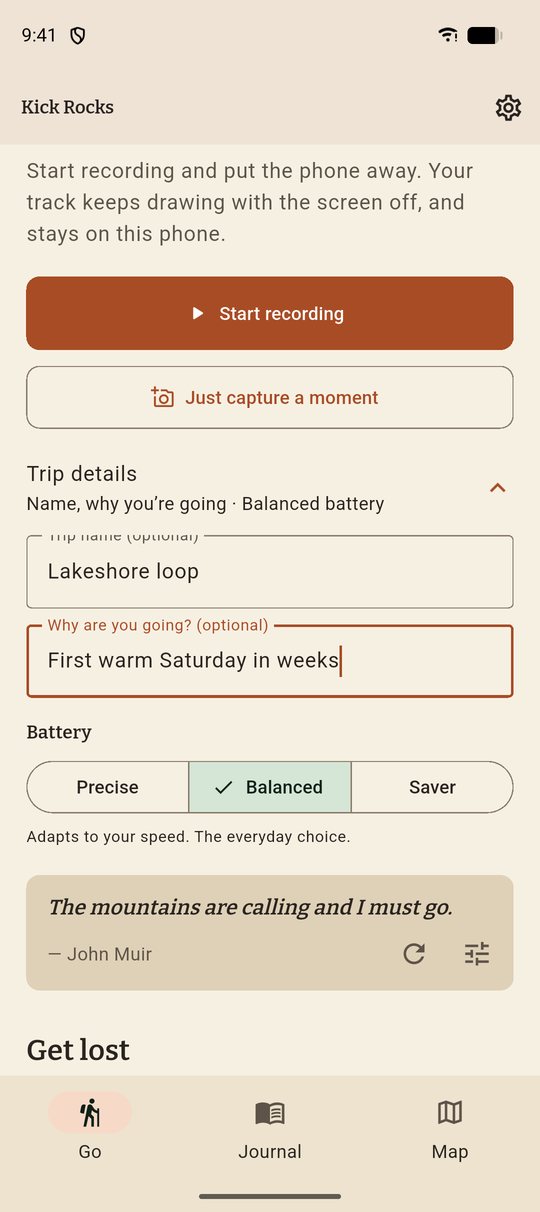
- On Go, open Trip details if you want to name the trip, say why you’re going, or change the battery mode. All of it is optional.
- Tap Start recording.
- Put the phone in your pocket. The track keeps drawing with the screen off, and a “Kick Rocks is recording your trip” notification stays up the whole time.
- When you’re done, open the app and tap Finish, then confirm. The trip is saved to your Journal.
Battery modes
- Precise — a fix every 1–2 seconds. Best lines, most battery. Good for shorter outings.
- Balanced — adapts to your speed. The everyday choice.
- Saver — sparse fixes, for all-day trips on a small battery.
While you record
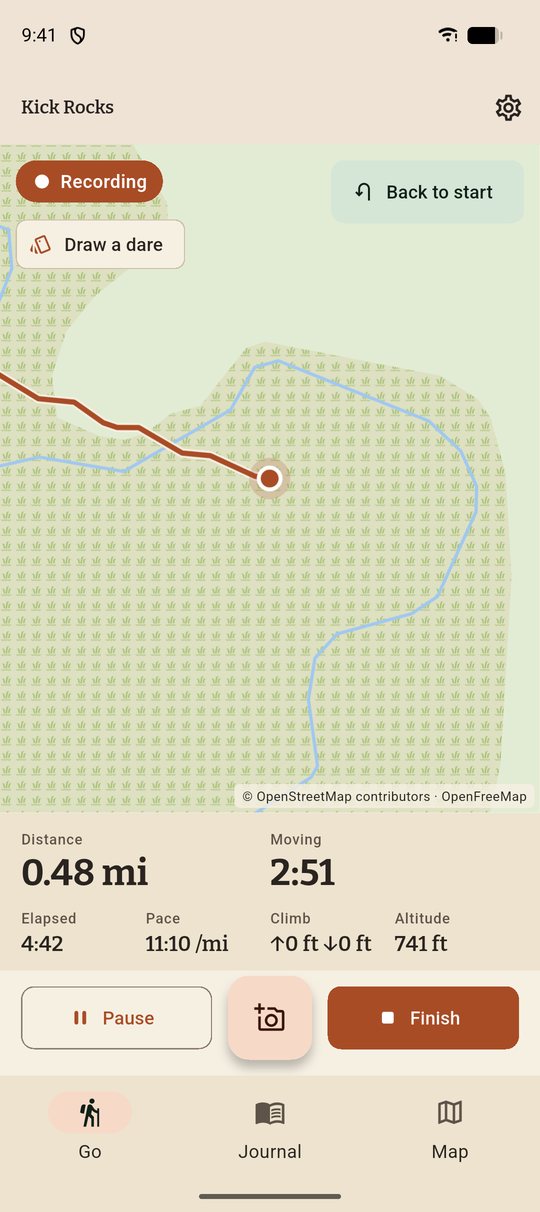
- Pause stops the track without ending the trip — for lunch, a car ride, or a ferry.
- Back to start opens a compass pointing back to where you began.
- The camera button in the middle captures a moment on this trip.
- Draw a dare and Your wander appear on the map when you’re using them.
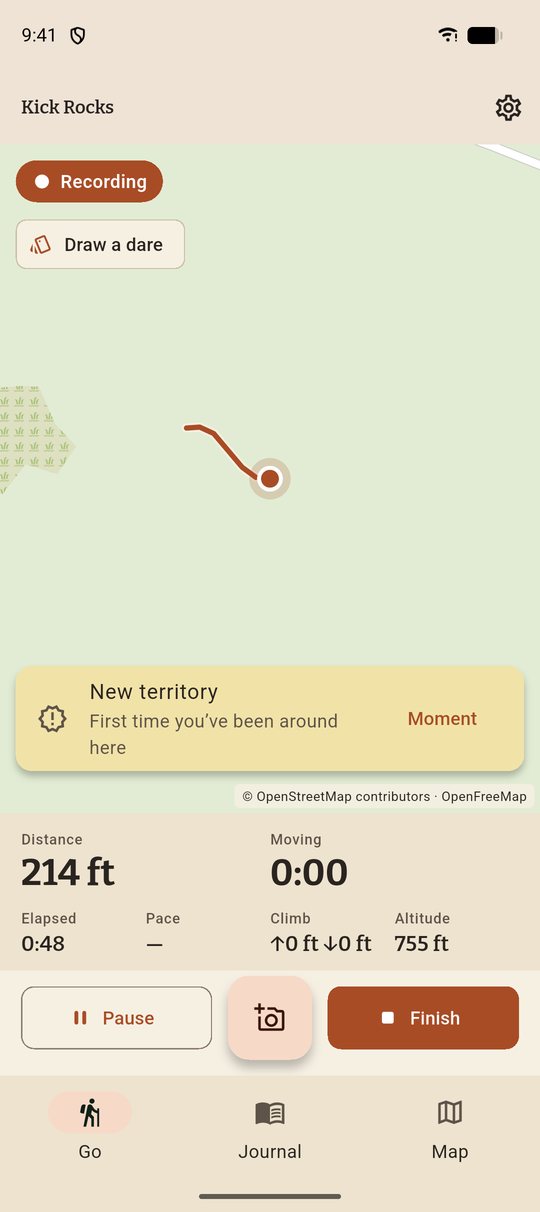
Kick Rocks also notices things: the first time you’re in a new town or somewhere your tracks have never been, or when you’ve stopped in one place a while, a card offers to Drop a moment. Ignore it and it goes away.
If the phone restarts, the battery dies, or Android closes the app mid-trip, everything up to that moment is already saved. Open Kick Rocks and it says Your recording was interrupted — tap Resume recording to pick up where you left off, or Finish trip to call it a trip. To add to a trip you already finished, open it and choose ⋮ → Keep recording this trip.
If you finish without moving and without any moments, Kick Rocks asks whether to throw the trip out, keep going, or save it anyway.
4. Capturing moments
A moment is a photo, a few words, a voice note — or all three — stamped with where and when. Capture one from the camera button while recording, from Just capture a moment on Go, from Add to trip on a trip, or from New entry in the Journal.
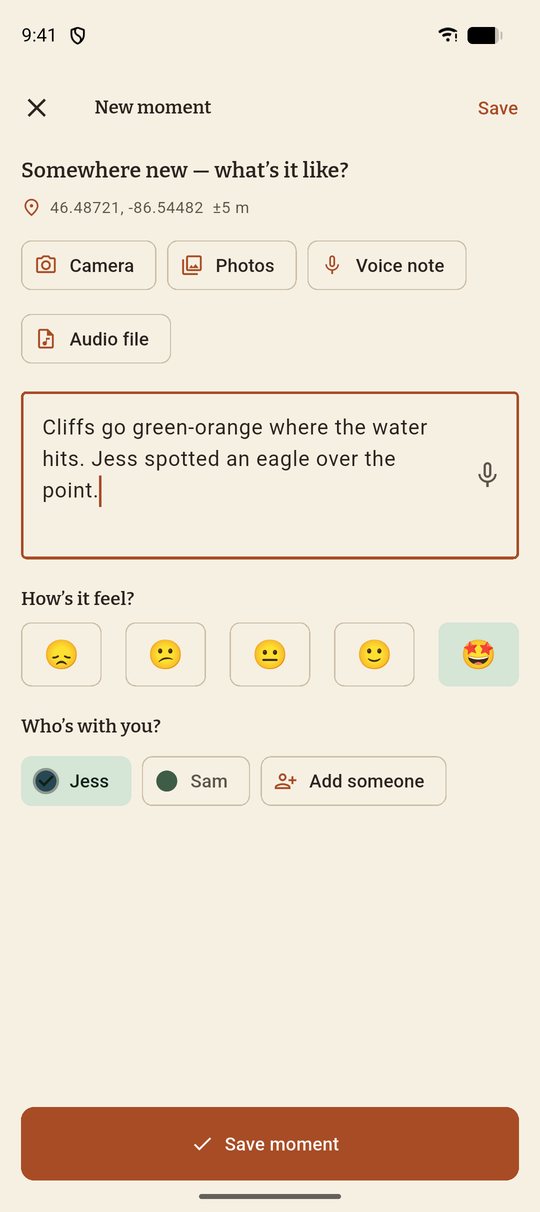
- Add a photo with Camera or Photos, record a Voice note, or attach an Audio file.
- Type in the text box, or tap the microphone in it and talk — your words appear as you speak. Tap the mic again to finish.
- Pick How’s it feel? — five faces from rough to great.
- Under Who’s with you?, tap the people who were there, or Add someone.
- Tap Save moment.
No GPS fix yet, or location off? The moment saves anyway, just without a place. Each moment’s ⋮ menu lets you edit it or add photos and audio, mark it Only me — never share, send it to one of the other Code Cowboys apps with Log this in…, or delete it.
An “Only me” moment stays on this phone. It’s held back from every trip you send, every web page and every Crew trip, and the send screen tells you how many were held back.
5. Wander and compass mode
Wander picks somewhere you’ve never been, inside the time you have.
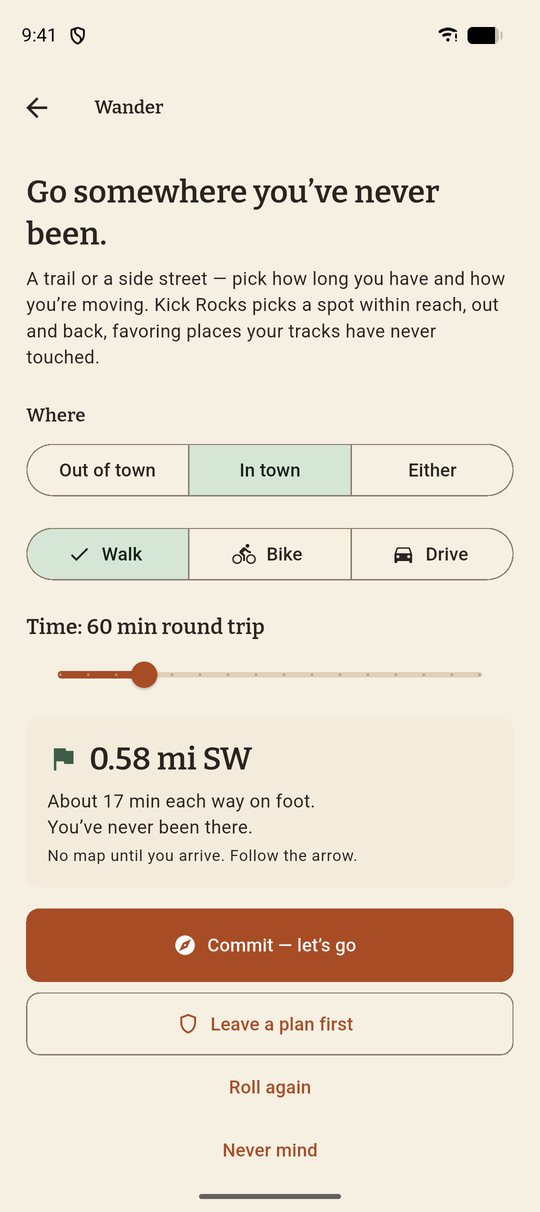
- On Go, under Get lost, choose Out of town, In town or Either, then tap Wander.
- Pick how you’re moving — Walk, Bike or Drive — and slide the time from 15 minutes to 4 hours, round trip.
- Tap Roll a destination. Kick Rocks picks a spot within reach, out and back, favoring places your tracks have never touched, and tells you how far it is and about how long each way.
- Don’t like it? Roll again. Like it? Leave a plan first if anyone should know, then Commit — let’s go.
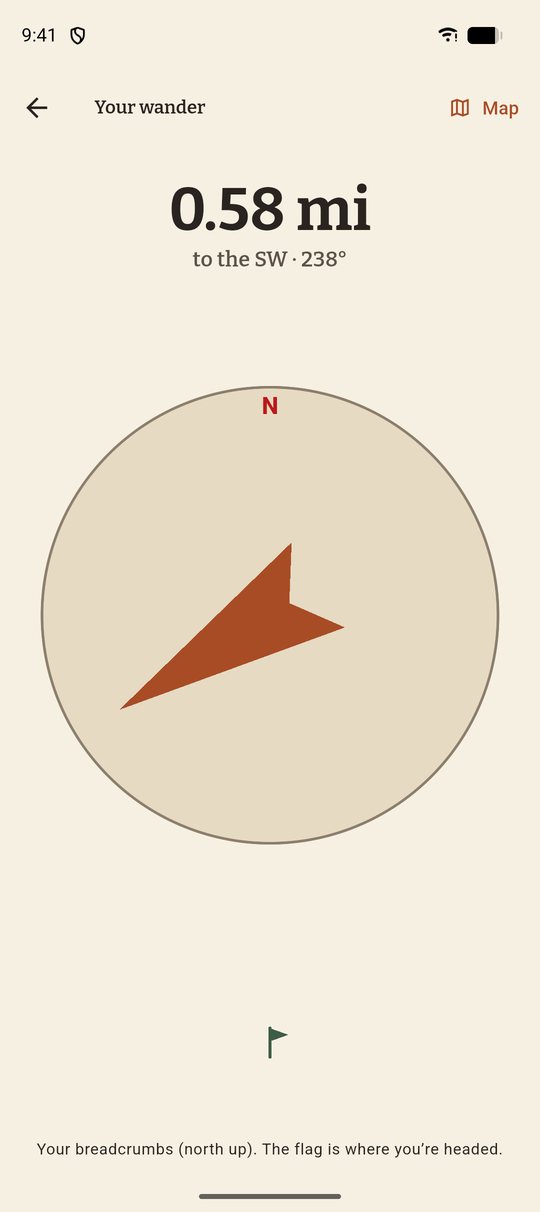
Committing starts a recording (if one isn’t running) and opens compass mode: the distance, the direction, a big arrow, and your breadcrumbs with a flag where you’re headed. There’s no map until you arrive — follow the arrow. On a phone without a compass, the arrow points by your direction of travel, so keep moving. The Map button is there if you need it.
When you get there, Kick Rocks says so and offers to drop a moment. Wanders reached without opening the map, and wanders in a row without a re-roll, count toward achievements.
6. Fog of War
Every block you’ve passed through — street or trail, about 500 feet square — is clear. Everything else is fog. Open Fog of War on Go to see:
- how many blocks you’ve explored, and the area they cover;
- how much of the land within about 2 miles of you is explored;
- the share of the city or town you’re in, and of its county.
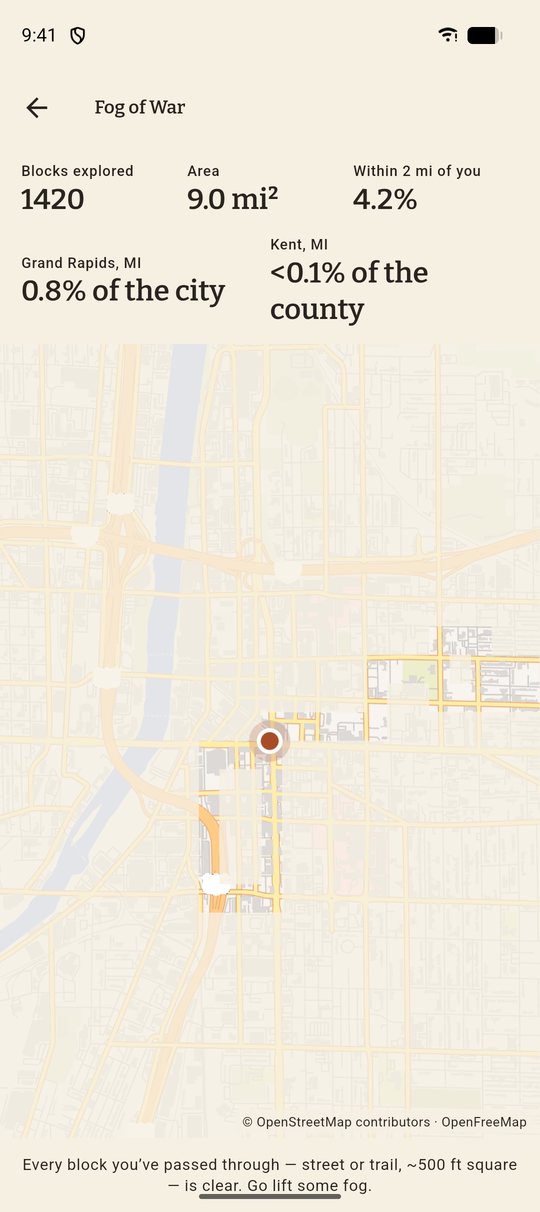
The fog lifts as you record. Get lost a little and watch the percentage climb.
7. Dares
Fifty small reasons to do something you wouldn’t have. Open Dares on Go (or Draw a dare while recording), pick Out of town, In town or Either, and tap Draw a dare.
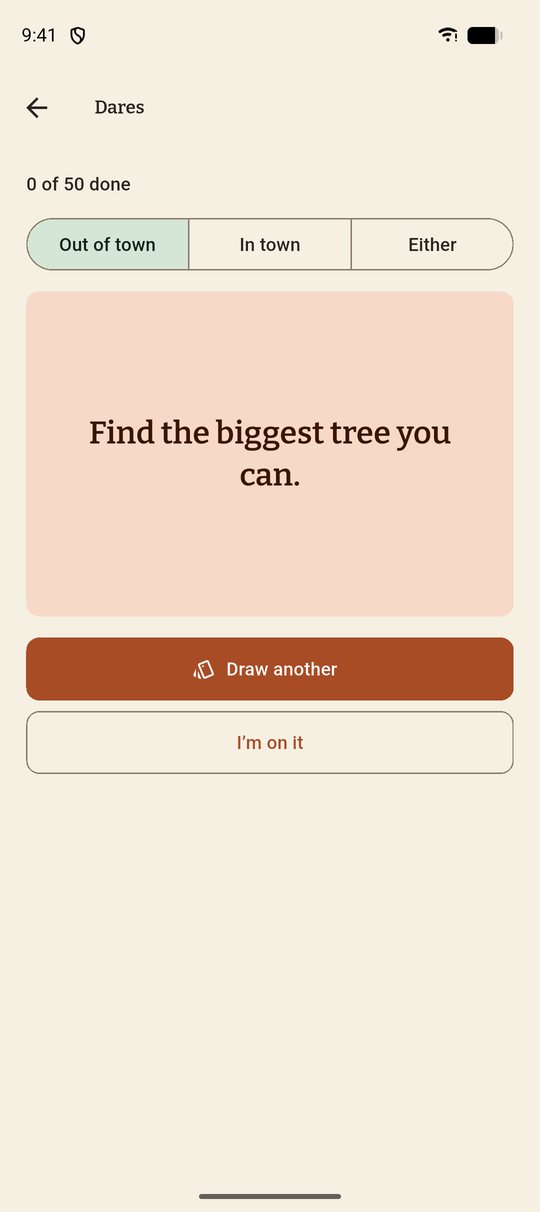
- Draw another until one feels right, then tap I’m on it.
- When you’ve done it, tap Done it — capture the moment and prove it with a photo or a few words. Or Not today.
Done dares are listed under the deck with a count — 3 of 50 done — and the first one earns an achievement.
8. Leave a plan
Before you head somewhere remote, tell someone. Tap Leave a plan on Go (or Leave a plan first in Wander).
- Fill in Where I’m going.
- Set Back by with the pencil.
- Add anything else that would help — the car, the trail, who’s with you.
- Tap Send my plan and pick a contact in your messages or email app.
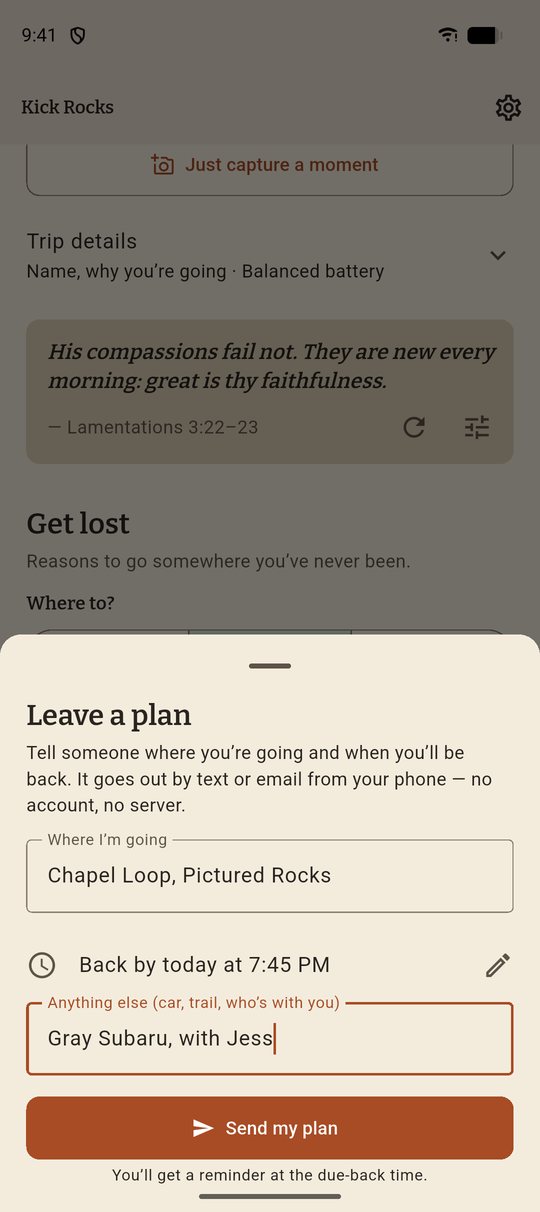
At the due-back time Kick Rocks asks Are you back? so you remember to tell your contact you’re safe. Kick Rocks doesn’t contact anyone for you — the plan is a message from you to them.
9. Finishing a trip
Tap Finish and confirm. The trip opens with its route, the dates and times, your “why”, and the stats: distance, moving time, elapsed time, average pace, climb and descent. A multi-day trip shows each day’s track in turn.
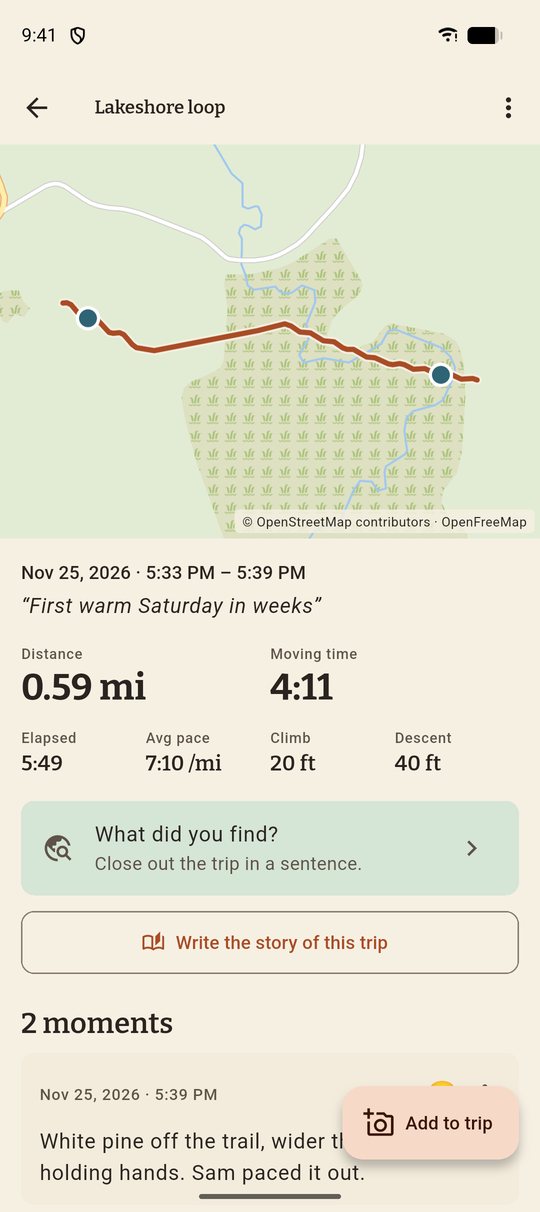
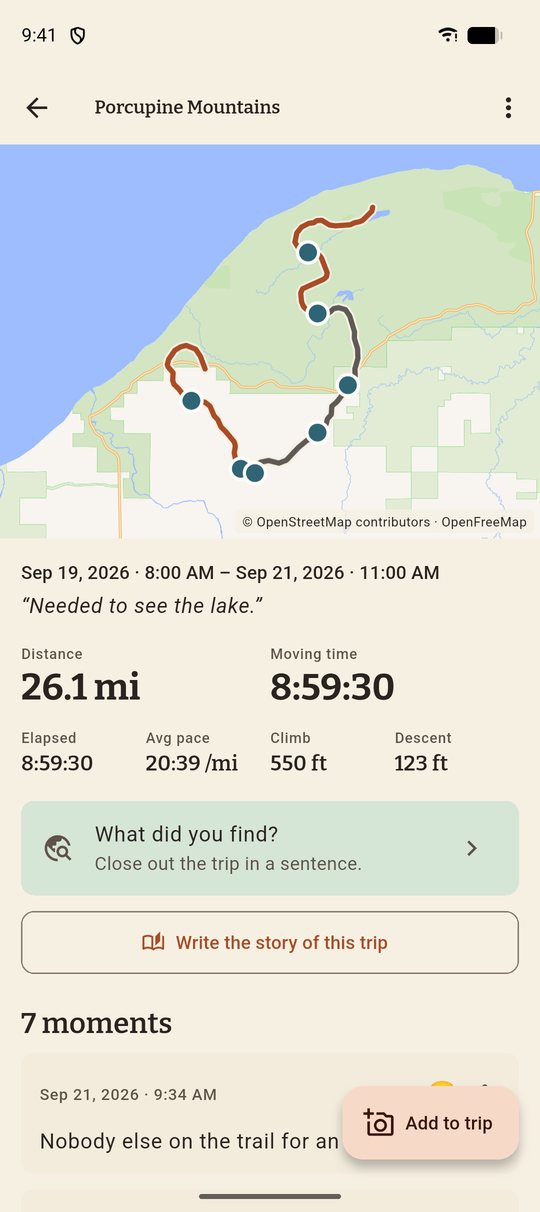
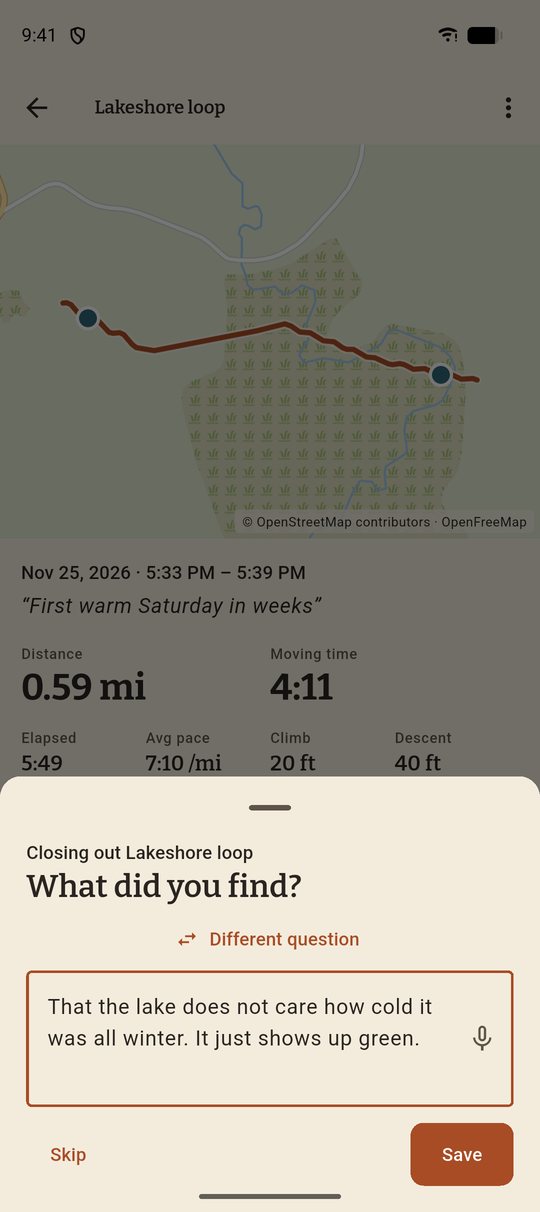
Tap What did you find? to close the trip out in a sentence. Don’t like the question? Different question, or write your own prompt. Kick Rocks may then suggest a title — keep yours or use its suggestion.
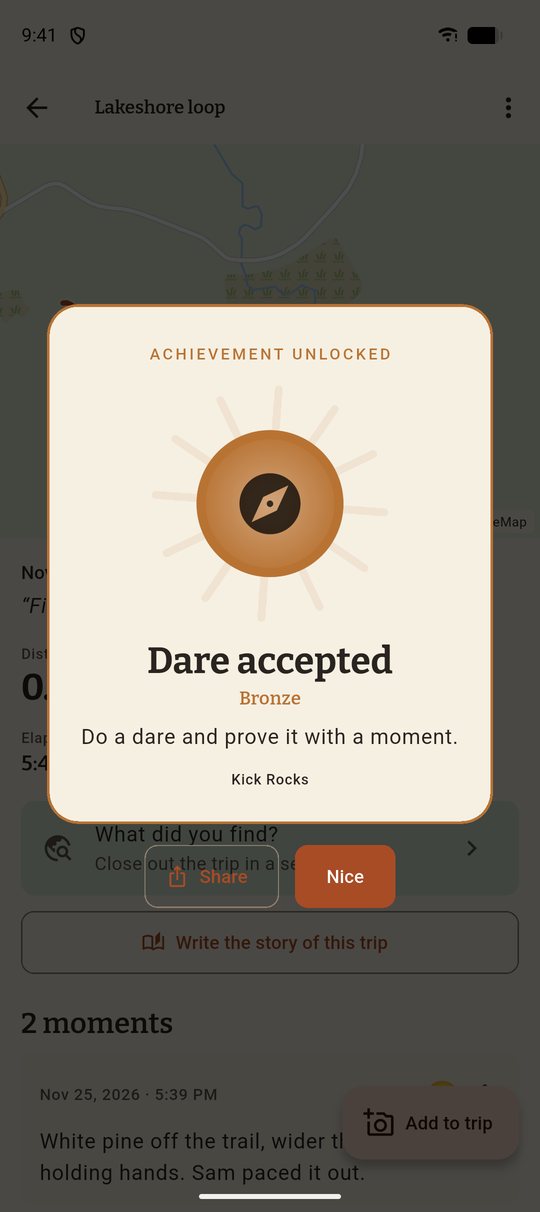
Earn an achievement along the way and it pops up when you finish. Tap Share to show it off, or Nice to move on.
10. The trip story and reflections
Tap Write the story of this trip and Kick Rocks drafts a short first-person journal entry from the facts of the trip and your own notes and reflections — in order, and without inventing anything that isn’t in them. Brief notes make a brief story.
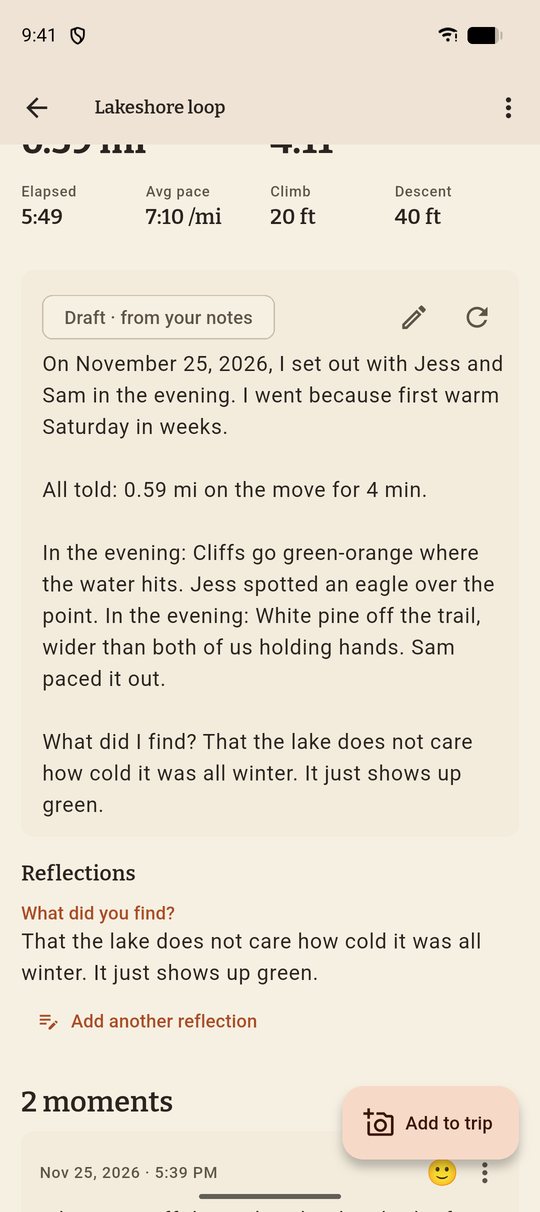
- On phones with an on-device AI model — Gemini Nano on supported Android phones, Apple Intelligence on supported iPhones — the draft is labeled Draft · on-device AI and reads like a narrative.
- On other phones it’s labeled Draft · from your notes and is a plainer story built straight from what you wrote.
Either way it’s written on your phone; your notes are never sent anywhere to be processed. Use the pencil to edit it, ↻ to rewrite the draft, and Add another reflection to answer another question.
Evening reflection and On This Day
On days you record a trip, one gentle prompt arrives at 8:30 PM — never twice. Past trips resurface in your Journal as On This Day memories once you’ve been using the app for 30 days. Both can be turned off in Settings → Reflection.
11. The Journal
The Journal has three tabs:
- Trips — every trip, newest first, with a mini route, distance, moving time, climb and moment count. At the top: Open a trip someone sent you and Import GPX.
- Moments — every moment from every trip, plus the ones you captured on their own. Filter by year, Good days, or a person.
- Life — see below.
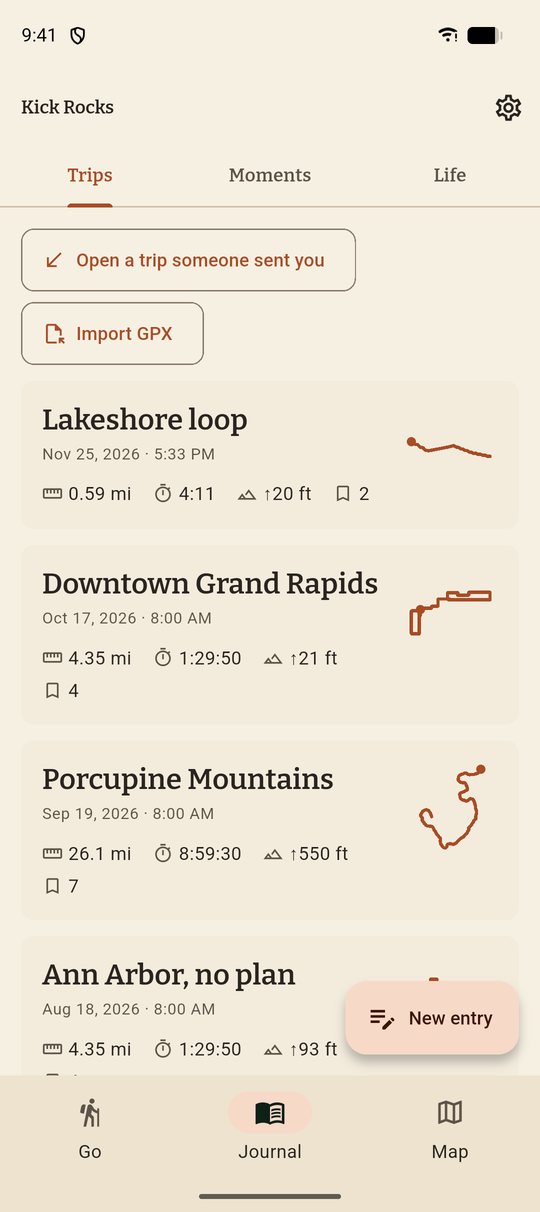
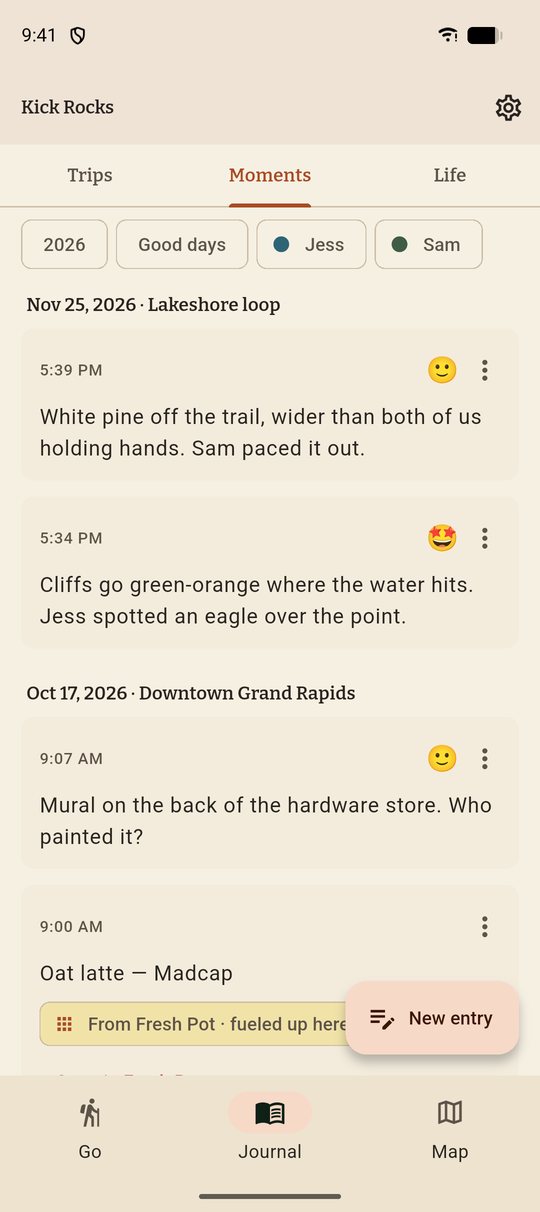
Tap New entry to write a moment that isn’t part of a trip — an evening at home is a day worth keeping too.
12. Life, achievements and Year in Rocks
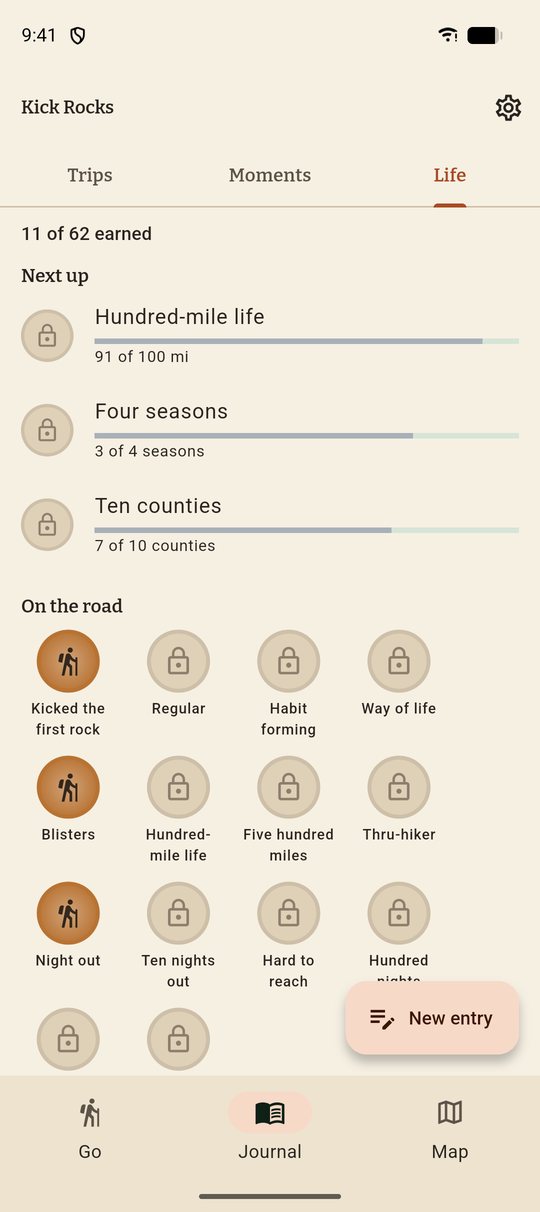
Journal → Life is your life so far: trips, total distance, miles on foot and by bike, climb, nights out, moments, who you go out with most, your longest trip and wander, and your most explored city.
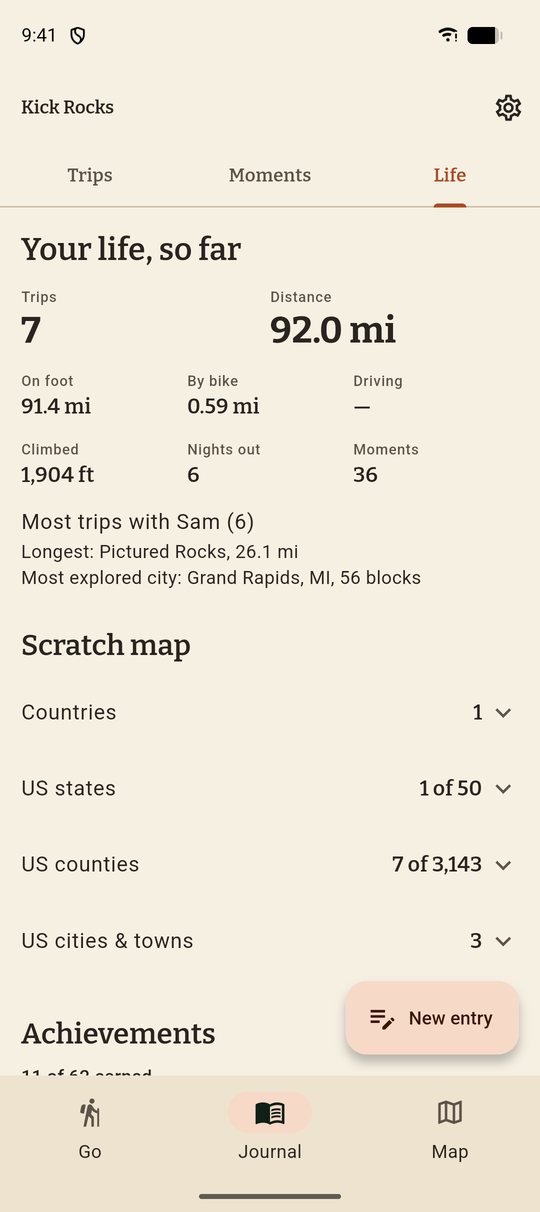
- Scratch map — countries, US states, US counties and US cities and towns you’ve set foot in. Tap a row to see the list.
- Achievements — 62 of them in bronze, silver, gold and legend: distance on foot, nights out, counties and states, town blocks, wanders, dares, moments, stories, trips with your crew, sunrises and seasons. Next up shows the three you’re closest to; tap a locked one to see how to earn it. Some unlock new trail colors.
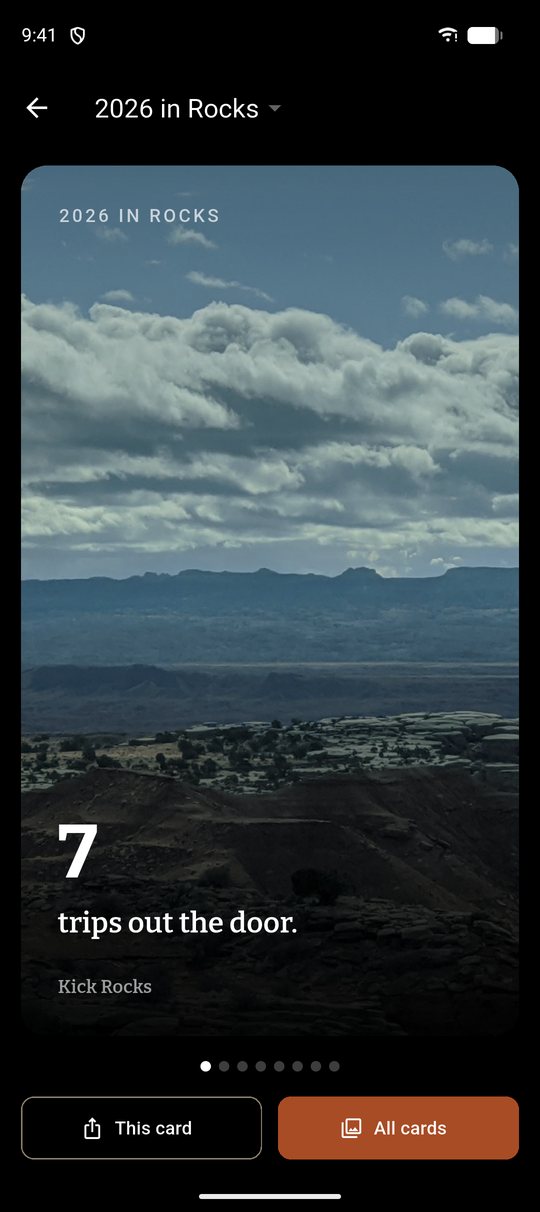
- Year in Rocks — your year as a set of swipeable cards: trips, distance, nights out, the big one, your crew. Share one card or all of them.
- Export everything (ZIP) — see your data.
13. The Map tab
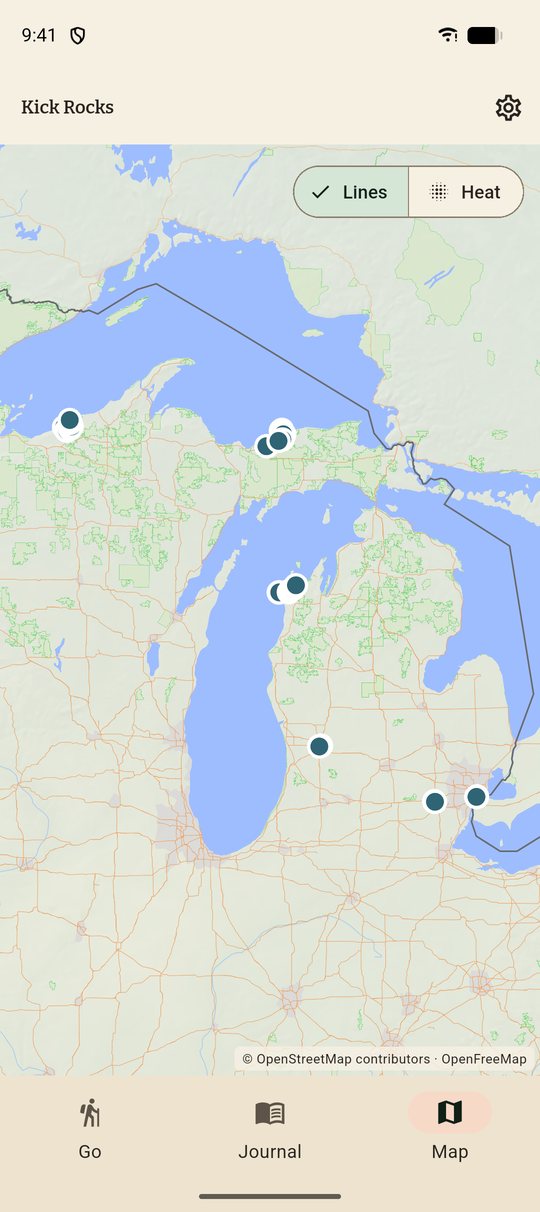
Every trip on one map. Lines shows each route; Heat shows where you go most.
Maps use OpenStreetMap data served by OpenFreeMap. Your tracks are drawn on your phone; the tile server only sees which area of the map is being viewed.
14. Trip Books, Route Replays and GPX Unlimited
Open a trip and tap ⋮:
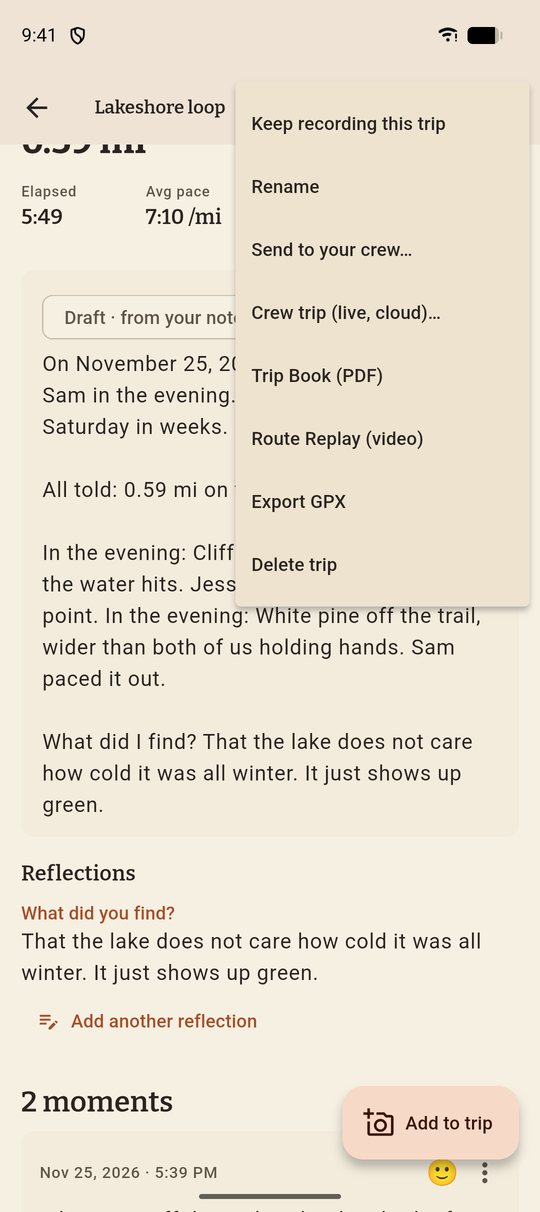
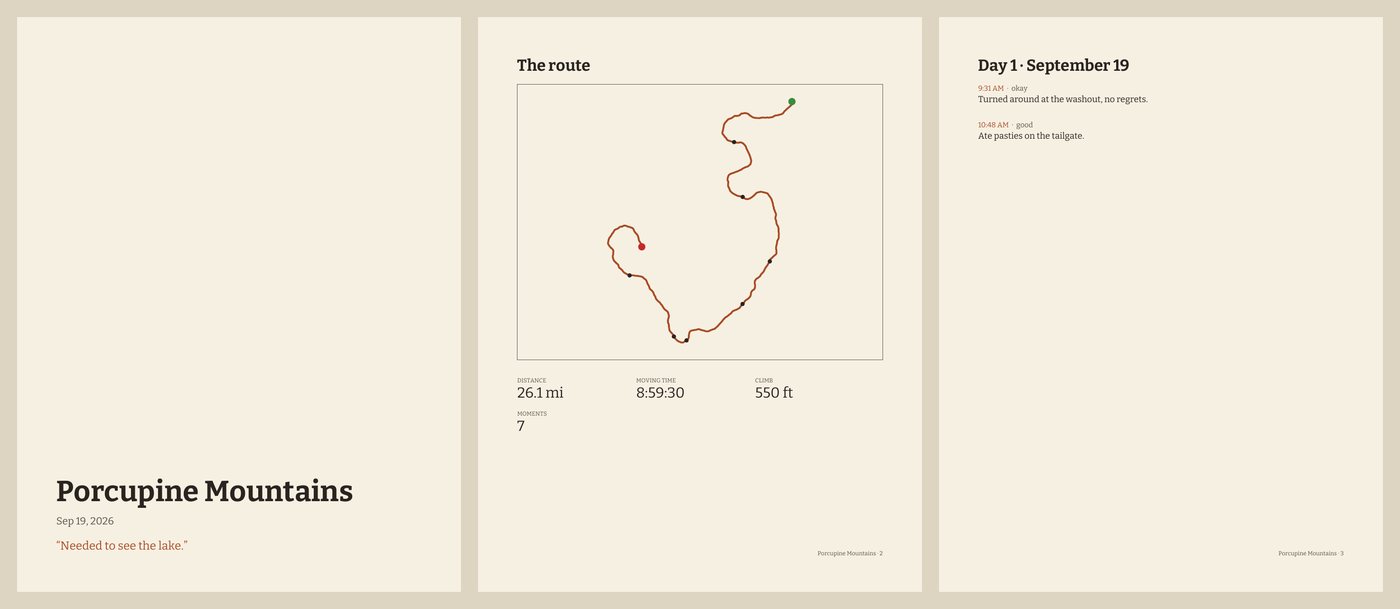
- Trip Book (PDF) — a printable book: a cover with the trip’s name and your “why”, the route with its stats, then a page for each day’s moments. It opens in the share sheet, where you can print it or save it.
- Route Replay (video) — an animated flyover of the route, rendered on your phone as a video to keep or share.
- Export GPX — the track as a standard GPX file for other mapping apps. Free.
Old trips from another app? Journal → Trips → Import GPX brings in a GPX file’s tracks and waypoints as a trip in your journal.
Privacy zones are cut out of GPX exports, Trip Books and Route Replays.
15. Sending a trip to your crew Unlimited
Everyone can record their own way — then swap trips and get one story with every photo and every track, each in its own color. Sending goes phone to phone: no account, no server.
- Open the trip and tap ⋮ → Send to your crew…
- Add your name once so they know it’s you.
- Choose what to send: the Whole trip, A day, or Only mine (just your own moments and track).
- Choose photo size: Smaller photos, Originals, or No media.
- Untick any moments you’d rather keep back.
- Tap Review and send, then send the file by Quick Share, AirDrop, a message, email or Google Drive.
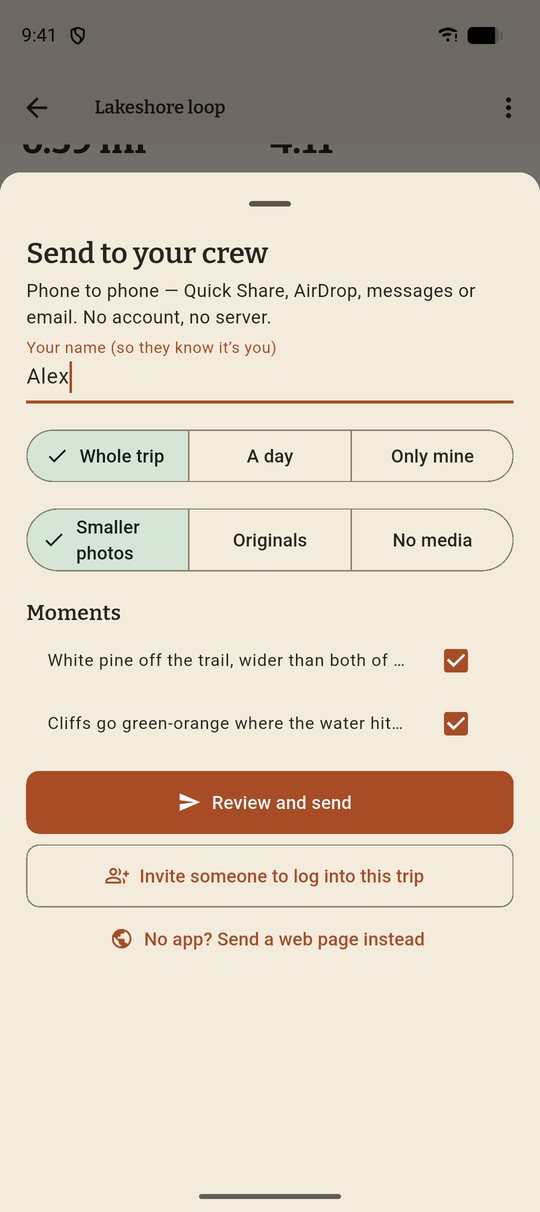
Before anything leaves, Kick Rocks cuts out your privacy zones, strips locations from photos, and holds back “Only me” moments.
- Invite someone to log into this trip sends an invitation instead: they import it, then record their own track and moments into the same trip.
- No app? Send a web page instead makes a single page with the story, the route and the photos that opens in any browser, with nothing to install.
16. Opening a trip someone sent you
Receiving is free, on every tier.
- Save the file they sent you, or leave it in your messages or Drive.
- In Kick Rocks, go to Journal → Trips and tap Open a trip someone sent you.
- Pick the file. Can’t find it? In the picker, tap ☰ and choose Drive or Downloads, then search “Kick Rocks”.
- If it’s a trip you already have, tap Merge into my trip: their moments and tracks merge in, each kept as theirs. If it’s new to you, tap Add to my journal.
On most phones, tapping the file in a message or email also opens it in Kick Rocks.
17. Kick Rocks Crew Crew
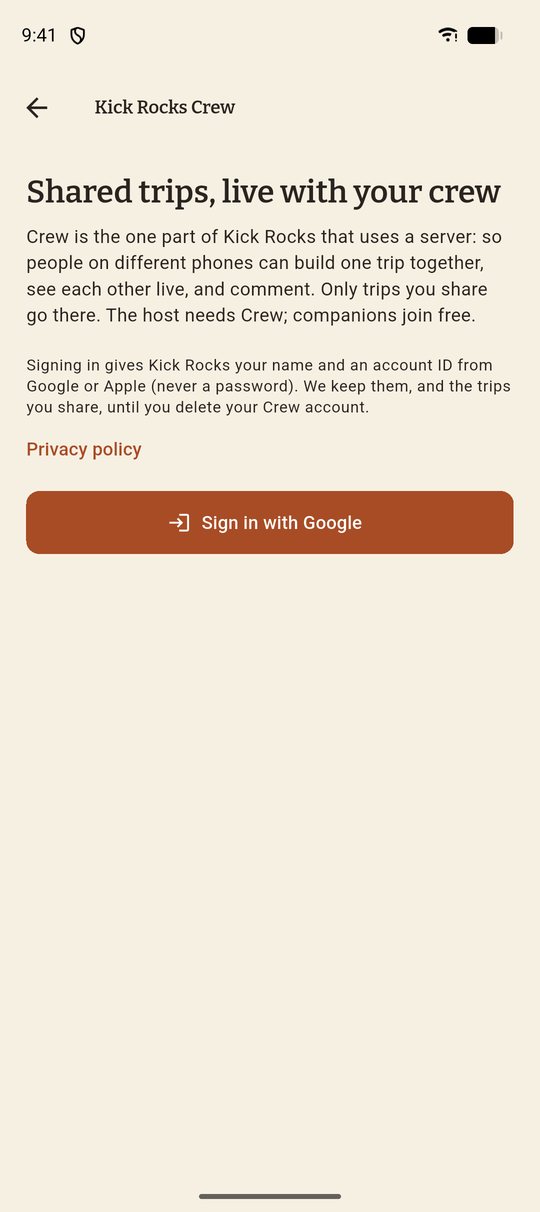
Crew builds a trip together, live, from different phones: everyone adds moments and tracks as they happen, sees each other on the map, and comments. It’s the one part of Kick Rocks that uses a server, and only the trips you put in Crew go there. Only the host needs a Crew subscription; companions join free.
Start a Crew trip
- Go to Settings → Kick Rocks Crew and sign in with Google (Sign in with Apple comes with the iPhone app). Signing in gives Kick Rocks your name and an account ID — never a password.
- Open a trip and tap ⋮ → Crew trip (live, cloud)…, then Start a Crew trip.
- Tap Invite someone and send them the invite.
- Turn on Live mode if you want your crew to see where you are while the trip records. Live mode ends with the trip, and your last position is deleted then.
Join one
Open the invite link, or go to Settings → Kick Rocks Crew → Join a trip with a code and paste the code. The trip lands in your Journal.
Share as a web page
Crew hosts can publish a trip as a public page: ⋮ → Crew trip → Share as a web page. Choose whether the link is unlisted, when it expires (a day, a week, a month), whether to include the story, and which moments to show. Your privacy zones are cut out on our server before anything is published, and photo locations are removed. Update the page any time, make a new link (the old one stops working), or turn it off.
Space and leaving
Crew includes 15 GB of shared photos; companions’ uploads count against the host’s space. At 80% you’ll see a warning, and at 100% new uploads stop — nothing is ever deleted. To leave, use Settings → Kick Rocks Crew → Delete my Crew account; Kick Rocks saves a copy of your Crew data first. See Delete your account for exactly what happens.
18. Meals, coffee, souvenirs, stays and rounds
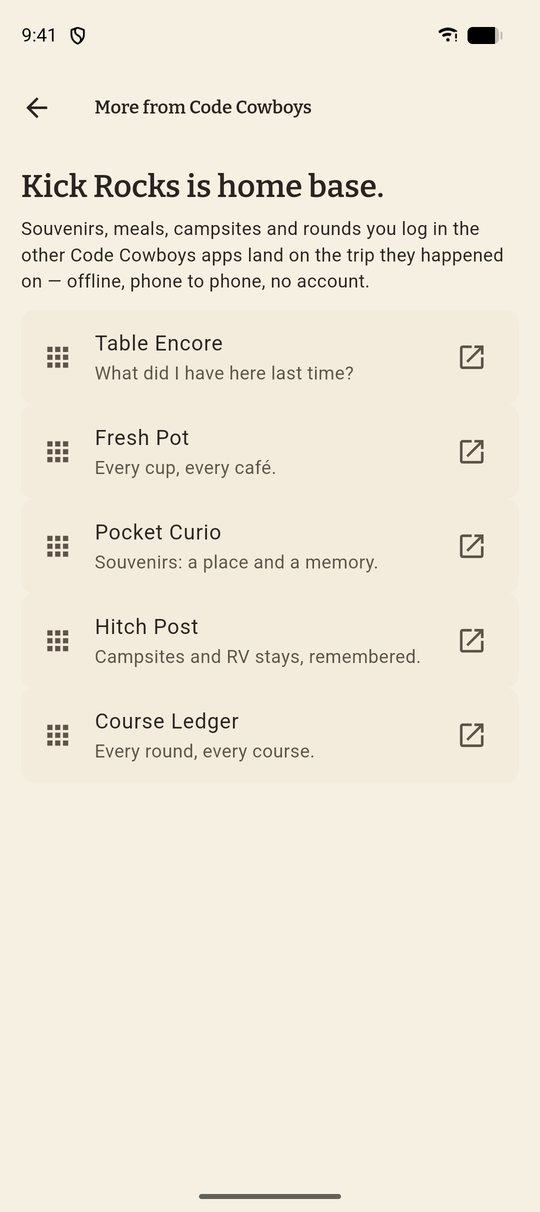
Kick Rocks is home base for the Code Cowboys collection. Log something in one of the other apps and it lands on the trip it happened on, with a badge saying what you did there:
- Table Encore — a meal, “ate here”
- Fresh Pot — a coffee, “fueled up here”
- Pocket Curio — a souvenir, “found this here”
- Hitch Post — a campsite or RV stay, “stayed here”
- Course Ledger — a round of golf, “played here”
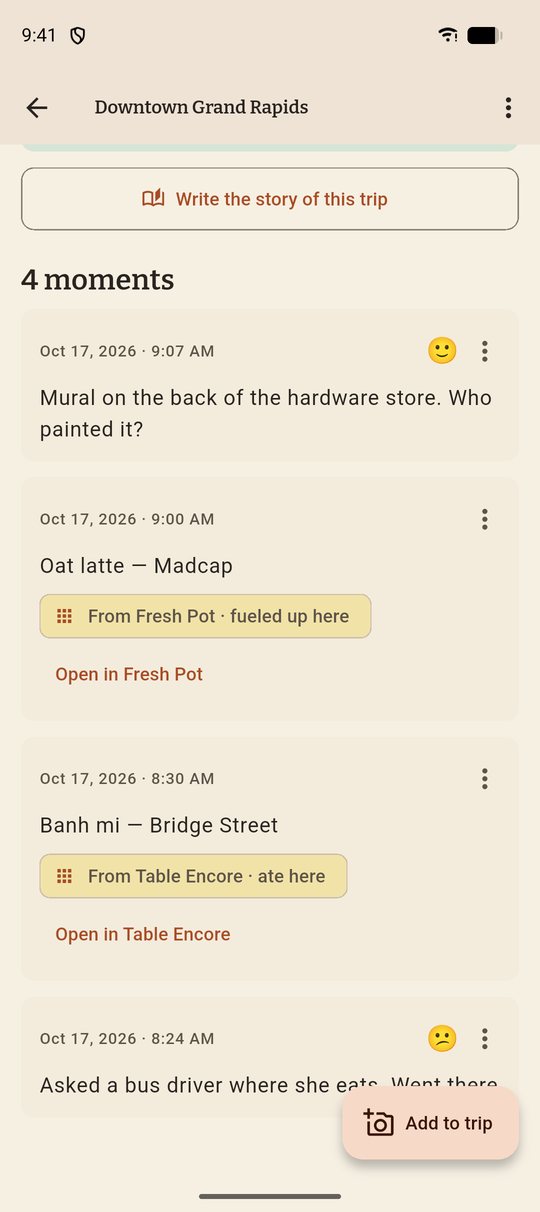
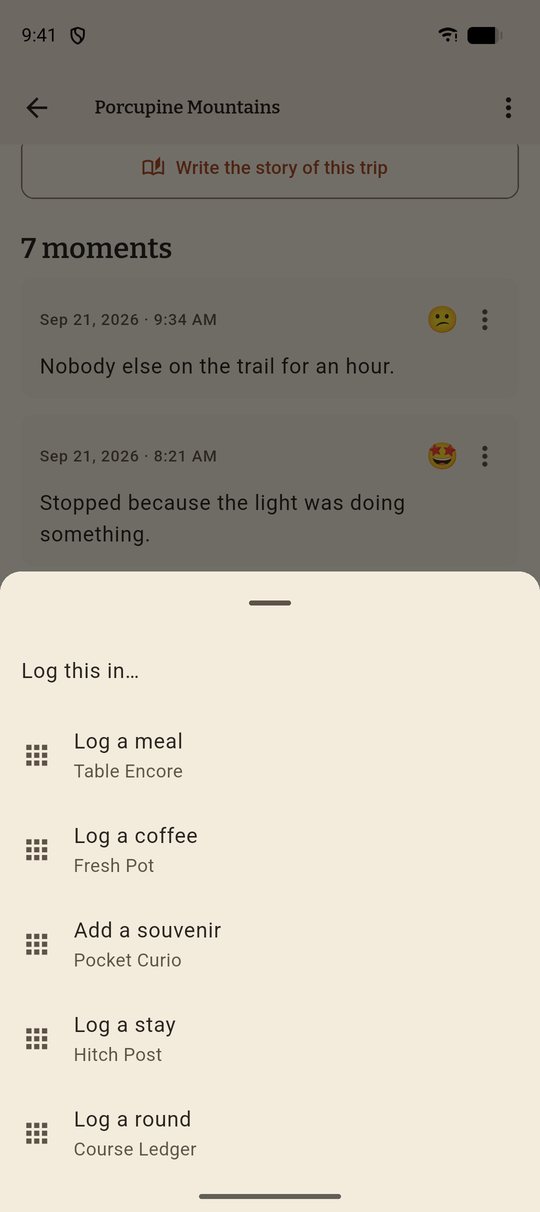
It all happens on your phone — offline, app to app, no account. If Kick Rocks can’t tell which trip an entry belongs to, it asks, or you can add it to your journal on its own. Open in… takes you back to the entry in the app it came from, and a moment’s ⋮ → Log this in… goes the other way. The full list lives at Settings → More from Code Cowboys.
19. Privacy zones
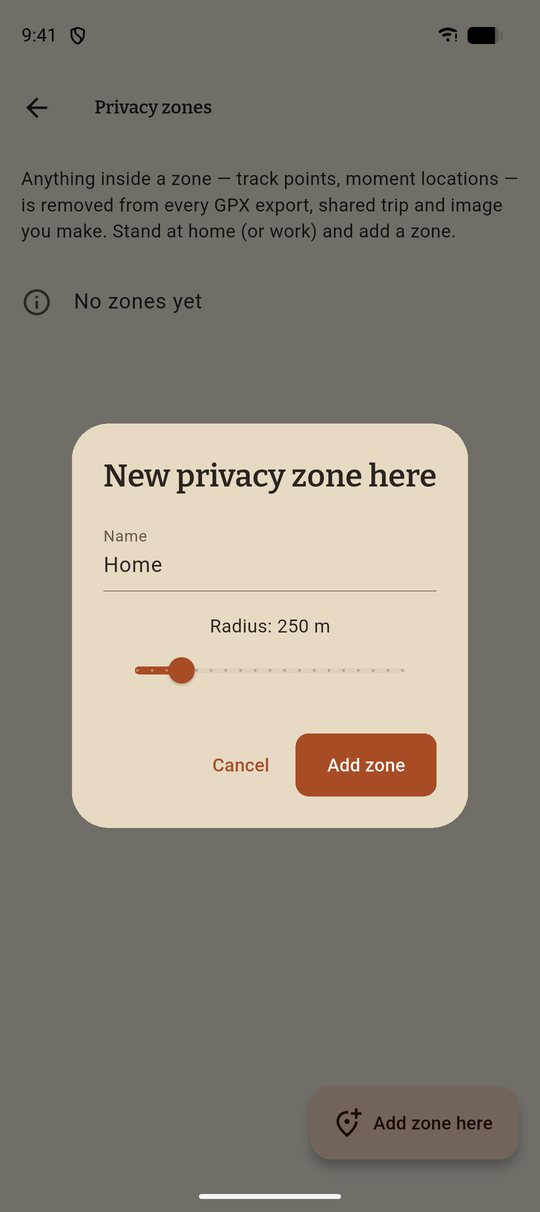
Mark home, work, or anywhere else you don’t want on a map. Anything inside a zone — track points, moment locations — is removed from every GPX export, shared trip, web page, Trip Book and image you make.
- Stand at the place you want to hide.
- Go to Settings → Privacy zones and tap Add zone here.
- Name it and set the radius, then tap Add zone.
Zones only affect what leaves your phone. Your own copy of the trip keeps the whole track, so your stats stay right.
20. Backup & sync Unlimited
Kick Rocks keeps a private copy in a hidden folder of your own Google Drive (or iCloud on iPhone) and keeps your phones and tablets in step. It’s your account and your storage — Code Cowboys holds no copy and can’t see it.
- Go to Settings → Backup & sync and tap Connect.
- Choose whether to sync on Wi-Fi only, and whether to back up original photos (full size) or smaller 2048-pixel copies to save space.
- Tap Sync now to back up straight away.
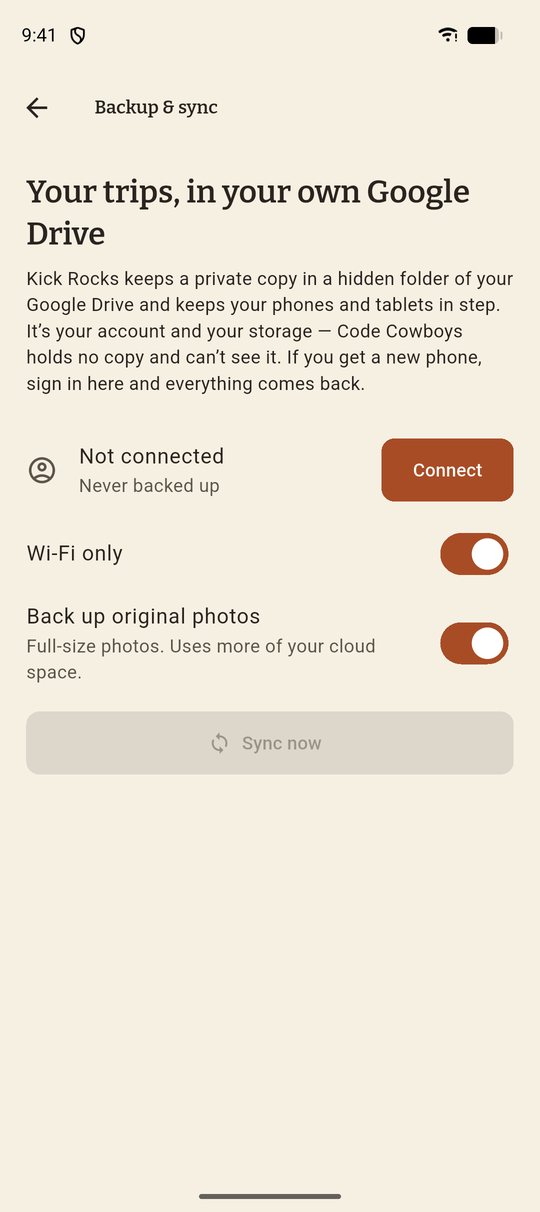
Got a new phone? Install Kick Rocks, sign in here, and everything comes back. On the free tier, Export everything makes a full copy you can keep yourself.
21. Settings and your data
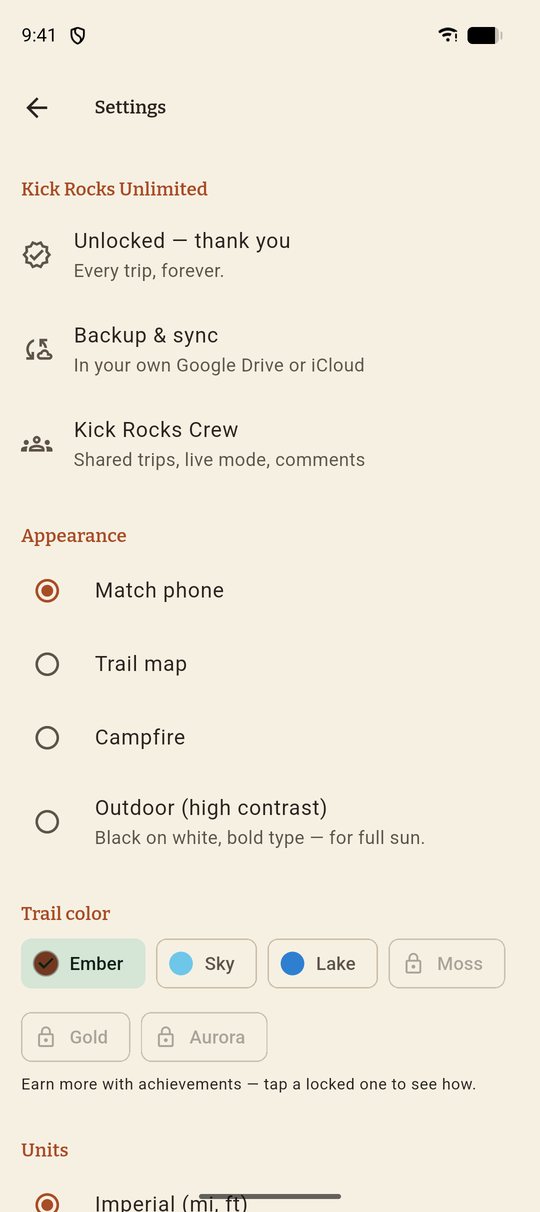
- Appearance — Match phone, Trail map, Campfire, or Outdoor (high contrast): black on white with bold type, for full sun.
- Trail color — the color of your tracks. More colors unlock with achievements.
- Units — Imperial (mi, ft) or Metric (km, m).
- Your name — shown to your crew on trips you send.
- Reflection — the evening prompt, A line for the road, and On This Day memories.
- Privacy zones — see above.
- About — the privacy summary, help, and More from Code Cowboys.
Export everything
Journal → Life → Export everything (ZIP) packs every record as JSON, every trip as GPX, and every original photo and recording into one file. It’s free, on every tier. Your data is yours.
Erase everything
Settings → Your data → Erase everything on this phone removes trips, moments, photos and settings. It can’t be undone, so type ERASE to confirm — and export first if you want a copy. It doesn’t touch your own cloud backup or a Crew account; see Delete your account.
22. Free, Unlimited and Crew
- Free — the recorder, moments, the Get Lost toolkit, reflections and the trip story, the life map, stats and achievements, receiving trips, GPX export and the full ZIP export. Your first three trips are saved.
- Kick Rocks Unlimited — a one-time purchase: every trip, forever, plus Trip Books, Route Replays, Year in Rocks, sending trips and web pages to your crew, and backup & sync in your own cloud.
- Kick Rocks Crew — a subscription, monthly or yearly: everything in Unlimited, plus trips built together live, live positions, comments, hosted web pages and 15 GB of shared photos. Only the host needs it.
Nothing you’ve recorded is ever locked away. The free cap only blocks saving a fourth trip; your first three stay yours to open, edit, export and print. Buy in Settings → Unlock Kick Rocks; already bought? Restore purchases on the same screen. There’s also a small tip jar if you just want to say thanks.
Still have a question?
Try the FAQ or Help, or write to hello@code-cowboys.com — it goes straight to the people who build Kick Rocks.